

Which collaboration tool fits your needs?

Collaboration tools are digital applications that make location-independent collaboration and communication within teams easier. They enable joint work on documents, real-time information sharing, and the organization of tasks and projects. Different tools stand out with varying feature sets.
An overview of the 9 best collaboration tools
| Cost | Server location | Available for | Special feature | |
|---|---|---|---|---|
| Microsoft 365 | ++ | USA, Europe | Windows, macOS, Android, iOS | Office Suite |
| Google Workspace | +++ | USA, Europe | Web-based, available in any browser | Office Suite |
| Asana | ++ | USA | Windows, macOS, Android, iOS | Tag system for task filtering |
| Trello | ++ | USA | Windows, macOS, Android, iOS | Customizable layout and design |
| Slack | +++ | USA | Windows, macOS, Linux (beta), Android, iOS | Code snippet sharing |
| Basecamp | ++ | USA | Windows, macOS, Android, iOS | Automated status check-ins |
| Spike | ++ | No data provided | Windows, macOS, Linux, Android, iOS | Emails in chat format |
| Wrike | ++ | USA | Windows, macOS, Android, iOS | Activity stream and version control |
| Notion | ++ | USA | Windows, macOS, Android, iOS | Knowledge management and internal communication |
Information correct as of October 2025
What are collaboration tools?
A collaboration tool or collaboration software offers various functions for managing projects and teamwork. The purpose of such a software solution is to optimize workflows, which is why the individual tools are suited for areas like planning, organization, or analysis. A tool can distinguish itself with features such as:
- Mind mapping: Many tools support teams in brainstorming and creative collaboration. Tools for creating mind maps as well as other brainstorming features encourage project participants to share their own ideas and actively shape the project.
- File sharing: One of the core principles of collaboration software is that users can share spreadsheets, documents, and other data with colleagues. Many tools offer a central storage platform and the option to define individual access rights.
- Real-time communication: Collaboration tools often include various functions for communicating in real time. Many built-in applications rely on established communication methods such as video calls, instant messaging, and email or offer integrations with common programs like Outlook.
- Shared calendar: Whether you’ve scheduled a team meeting, have important business calls coming up, or set a deadline: Emails, calls, or chat messages are good ways to inform people about upcoming events – but they’re often quickly forgotten. That’s why collaboration tools provide calendar features so all relevant dates can be shared and accessed at any time.
- Management features: Good collaboration software also ensures that project and team leaders can optimally plan and oversee different workflows. Components are available to allocate and organize existing resources efficiently. In addition, many tools offer solutions to document and analyze workflows and progress.
Why it pays to use collaboration software
Of course, you don’t necessarily need collaboration software to organize projects and optimize workflows. A small team working in the same office can often coordinate without specific tools or with just a few individual applications. However, with a growing number of employees and projects and participants who are not connected to the company network, the value of such software for optimizing workflows increases significantly:
- Increasing complexity: Things get confusing when multiple teams and deadlines need to be coordinated.
- Efficiency gains: Status updates and agreements can be handled centrally and save time.
- Cost savings: Less manual work and more time for strategic tasks.
- Central file sharing: File sharing works independently of the company network.
- Easy partner integration: External parties can be seamlessly integrated into processes.
What collaboration tools are available? 9 tools in detail
Finding the right software for workflow optimization is often harder than it seems at first glance. This is mainly due to two factors: First, the different solutions vary considerably in terms of scope and costs (ranging from expensive enterprise to free freemium or open-source solutions).
Some applications offer a wide range of collaboration features, while others are specialized in certain functions. It is also important to distinguish between locally hosted solutions and provider-hosted online applications (cloud or SaaS). While the former have advantages in terms of security, the latter are stronger in terms of remote access.
Microsoft 365
Microsoft is primarily known for its Office applications alongside Windows. In 2011, the company brought Microsoft 365 to the cloud as web applications, paving the way to turn Word and others into collaboration software. Instead of purchasing the software package, Microsoft 365 allows you to subscribe to the programs and access them via a web browser.
A key advantage: Microsoft 365 not only offers a wide range of integrated applications but also, for some time now, AI features under the name Copilot. These AI-powered tools help, for example, in Word with drafting texts, in Excel with creating complex formulas, or in Outlook with automatically sorting and responding to emails – all directly within the familiar applications.
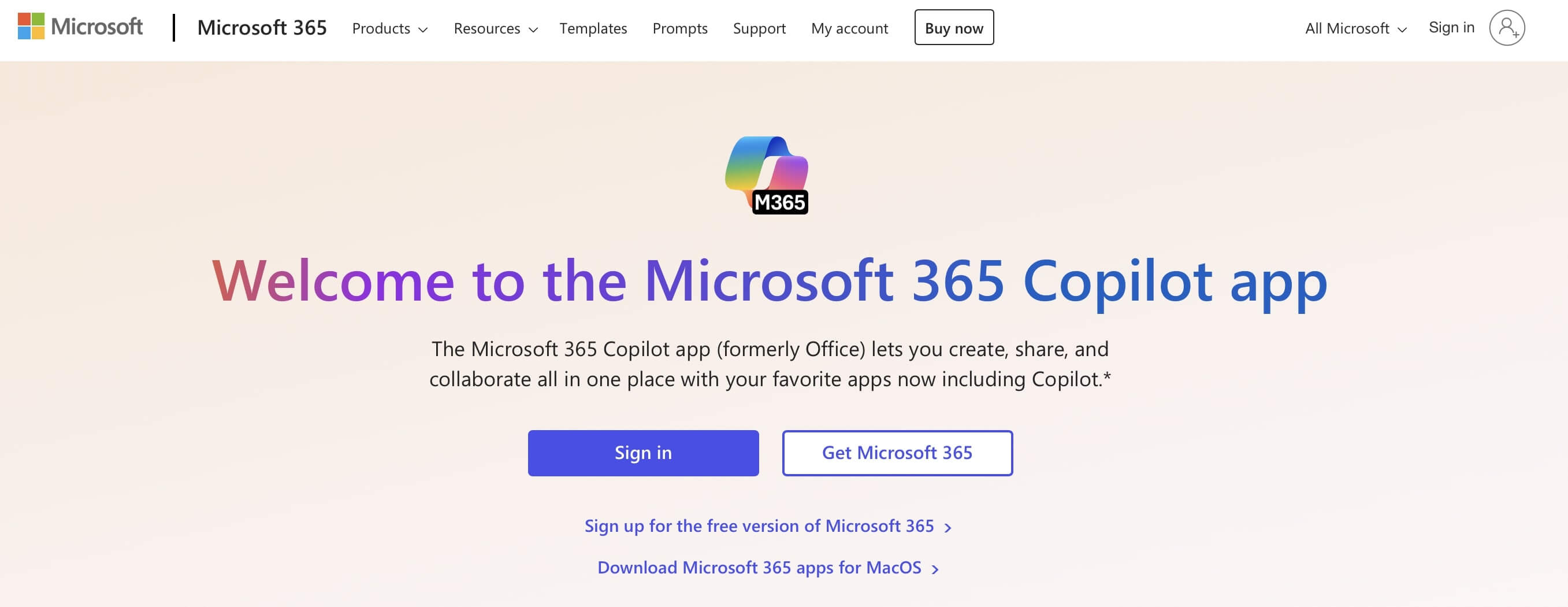
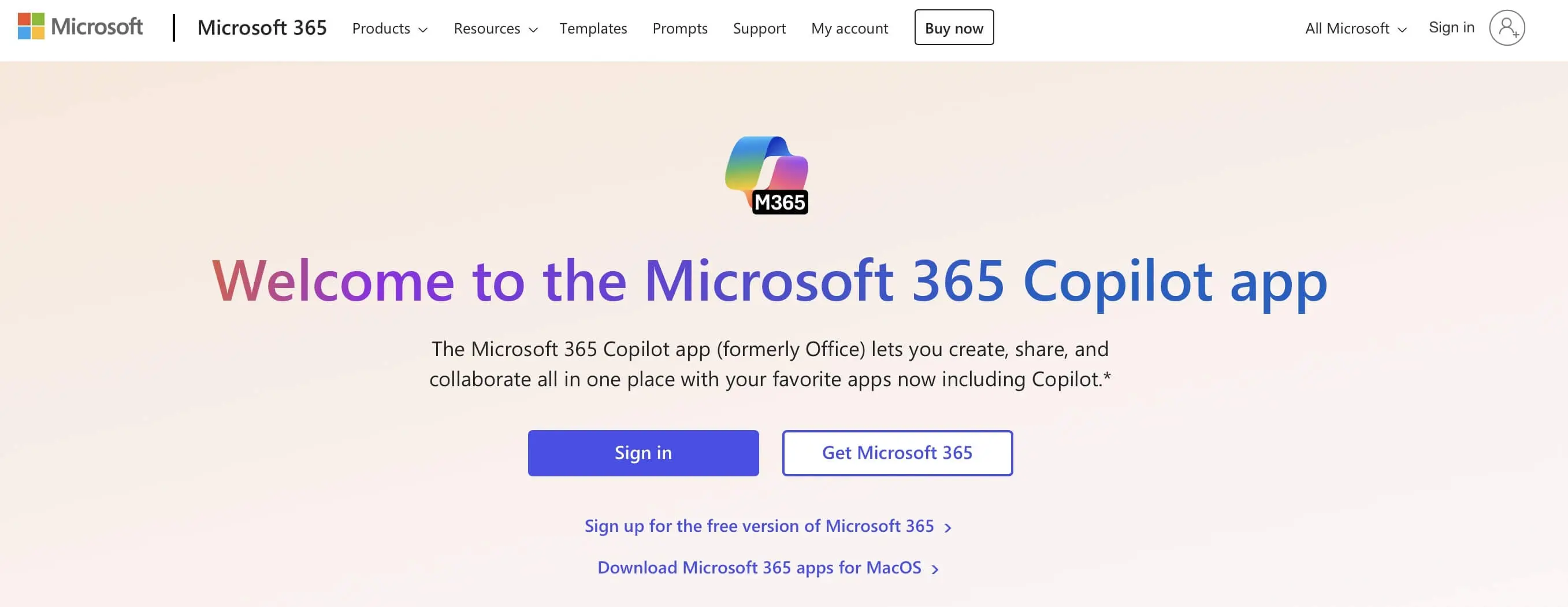
Since Microsoft 365 consists of various programs, the possibilities for collaboration are equally diverse. With Outlook (and Exchange), for example, you can share calendars within the company. Word, Excel, and PowerPoint in the cloud allow multiple users to work on files simultaneously – no more cumbersome email attachments. Microsoft Teams is collaboration software that primarily enables communication between employees.
Few other solutions offer such a range of options. While many other collaboration tools can be expanded with integrations and additional apps, Microsoft 365 has all essential tools built in.
Collaboration applications in Microsoft 365:
- Word: Word processing with multiple users
- Excel: Spreadsheets with multiple users
- PowerPoint: Create presentations with multiple users
- Outlook: Share appointments, calendars, and tasks with team members
- Teams: Communicate with colleagues
- Access: Create databases with multiple users
- OneNote: Share notes with others
- OneDrive: Shared cloud storage
| Advantages | Disadvantages |
|---|---|
| ✓ Office has been the standard in office software for decades | ✗ Too extensive for some teams |
| ✓ Many apps from a single source | |
| ✓ Web app, desktop version, and mobile apps available |
Powerful Exchange email and the latest versions of your favorite Office apps on any device — get started with our free setup assistance.
Google Workspace
While Google is still best known as a search engine provider, millions of people worldwide also use the company’s other services. Some of these are bundled under Google Workspace. This is a software suite for office work and multiple collaboration tools. Most people are familiar with Gmail, Google’s free email service; Google Docs for creating documents; and Google Drive, the provider’s cloud storage. Many of these applications are available for free to private users with a Google account. However, businesses can also opt for an upgraded version with additional services: professional email addresses, more storage, and 24/7 support.
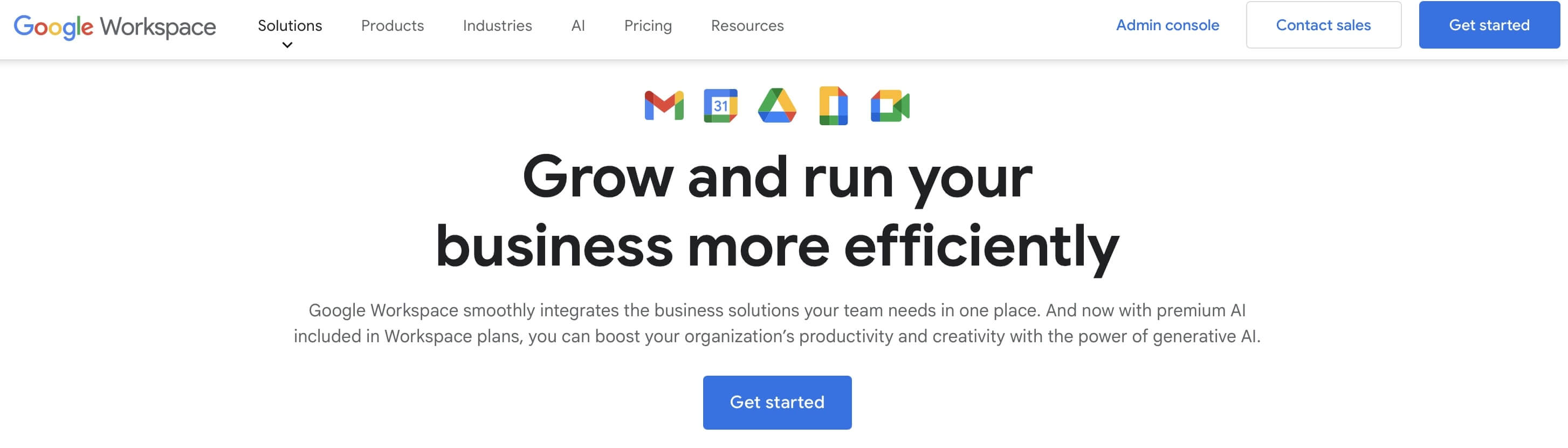
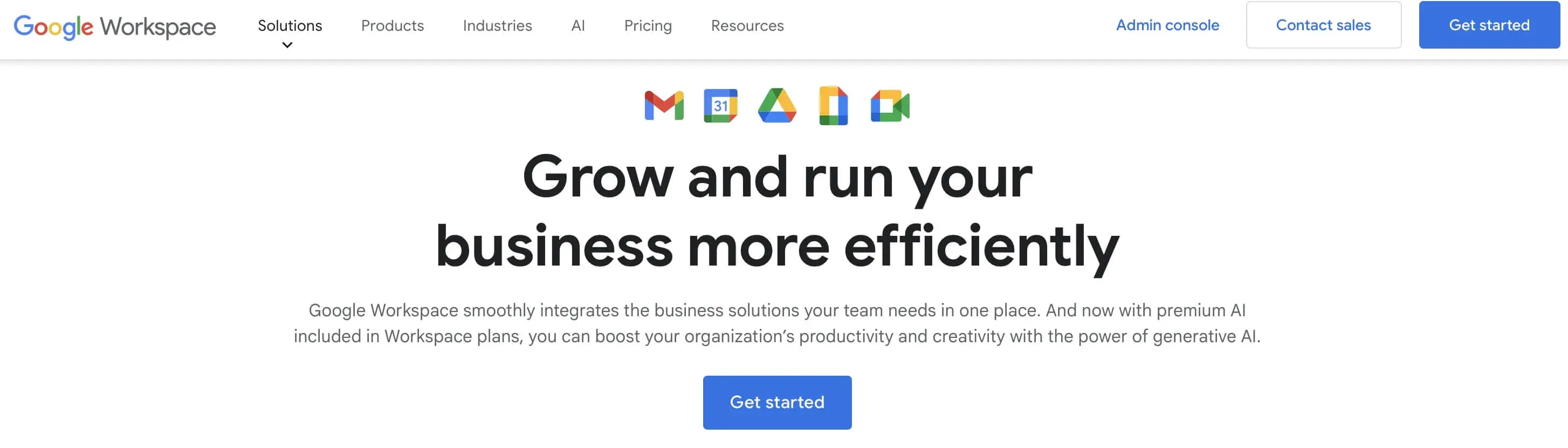
The applications are designed as Software-as-a-Service or cloud computing: The software doesn’t run on the users’ devices but is accessed via a web interface. Since all data is stored in the cloud, users can easily access it together. Calendars can be shared, documents can be edited collaboratively, and meetings can be held online.
Collaboration features in Google Workspace:
- Communication: With the Gmail email service, Google Chat (for internal chatrooms), and Google Meet (for video conferencing), team members can communicate with each other.
- Task management: Calendar and note-taking apps allow tasks to be assigned and deadlines to be set.
- Creation: In addition to the well-known tools for creating documents (Docs, Sheets, Forms, and Slides), Google Workspace also allows you to collaboratively work on websites and custom-built apps.
- Storage: Along with the Drive cloud storage, Google also offers Vault, an archive solution for business customers.
- Administration: To give companies full control over Google Workspace, the Admin app lets you manage users and assign permissions.
- AI assistance: Google also offers users the general AI assistant Gemini, which can summarize content in Docs and Sheets, as well as the research AI NotebookLM.
| Advantages | Disadvantages |
|---|---|
| ✓ Comprehensive office suite | ✗ Too extensive for some teams |
| ✓ Many apps from a single source | |
| ✓ Platform-independent |
- All your favorite Google productivity tools
- Business Gmail for your domain
- Using Gmail with your domain from IONOS
Asana
In 2011, Facebook co-founder Dustin Moskovitz and programmer Justin Rosenstein launched the collaboration software Asana. Both had previously worked on in-house workflow optimization solutions for the social media giant, where the idea arose to develop a standalone tool. The SaaS web application, hosted on the company’s own servers, focuses on managing projects and tasks without the need for an additional communication platform. In addition to the web application, which can be accessed via any common web browser, there are also apps for iOS and Android, allowing Asana to be used on mobile devices. The Personal version of the tool is free, but unlike the paid versions “Starter,” “Advanced,” and “Enterprise,” it offers only a limited feature set.


With Asana, you can assign any number of teams their own workspace. Within such a digital workspace, you can manage any number of projects by creating, taking on, and processing tasks. You can, for example, define deadlines, add tags to filter tasks, or attach local files and documents from Dropbox, OneDrive, Box, and Google Drive. A dashboard provides an overview of various projects and tasks, sortable by alphabet, deadline, or task status.
Other features of the collaboration tool include:
- Dedicated team calendar
- Project chat (Conversations)
- Messaging system (Inbox) with archive
- Undo function
- Task synchronization with external calendar software
- Print and export functions (CSV) for projects and tasks
- Automatic task prioritization and status reports through generative AI
The free version allows you to set up projects for up to 10 people. If you need to manage larger teams, you should upgrade to the Premium editions. These also include predefined templates that let you create new projects with a single click. Additionally, the paid plans provide advanced search and reporting features for even smoother workflows, as well as access to specialized admin features for better project and user control. The Enterprise version also offers exclusive support and the option to enforce SAML-based login (Security Assertion Markup Language) for all users.
| Advantages | Disadvantages |
|---|---|
| ✓ Dedicated messaging system and email notifications available | ✗ Data stored on U.S. servers |
| ✓ Mobile apps for iOS and Android | ✗ No desktop application |
| ✓ Free for projects with up to 10 users |
Trello
The American company Fog Creek Software released its collaboration tool Trello in September 2011 after about a year of development. The tool, now owned by the software company Atlassian, is available as a platform-independent web application and a mobile app for iOS and Android, enabling task coordination through Trello’s clear, easy-to-use boards. Additional collaboration features such as calendars or integrations with cloud applications can be added via so-called Power-Ups. AI support is also integrated but is only available to users of the “Standard,” “Premium,” and “Enterprise” plans.
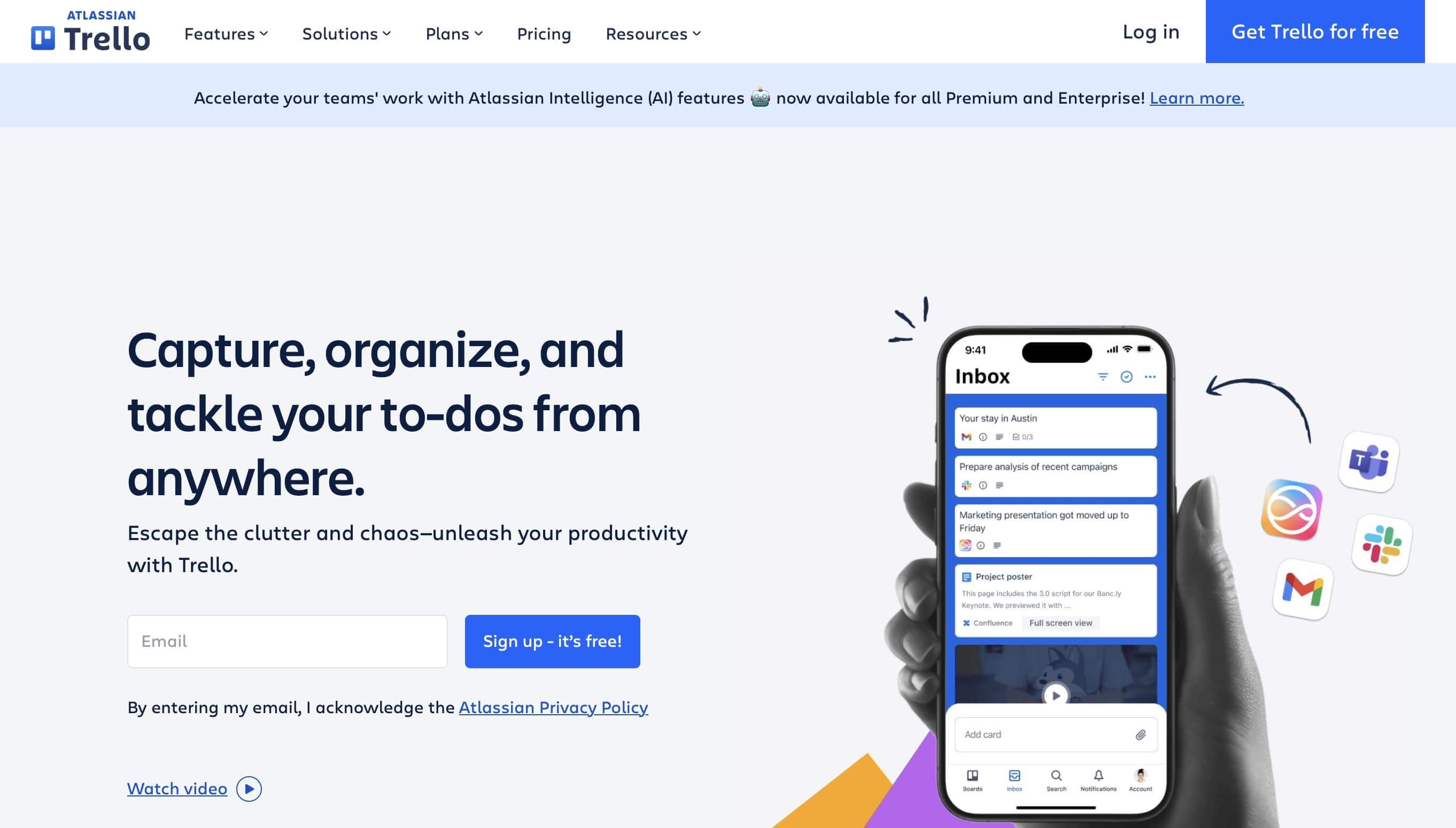
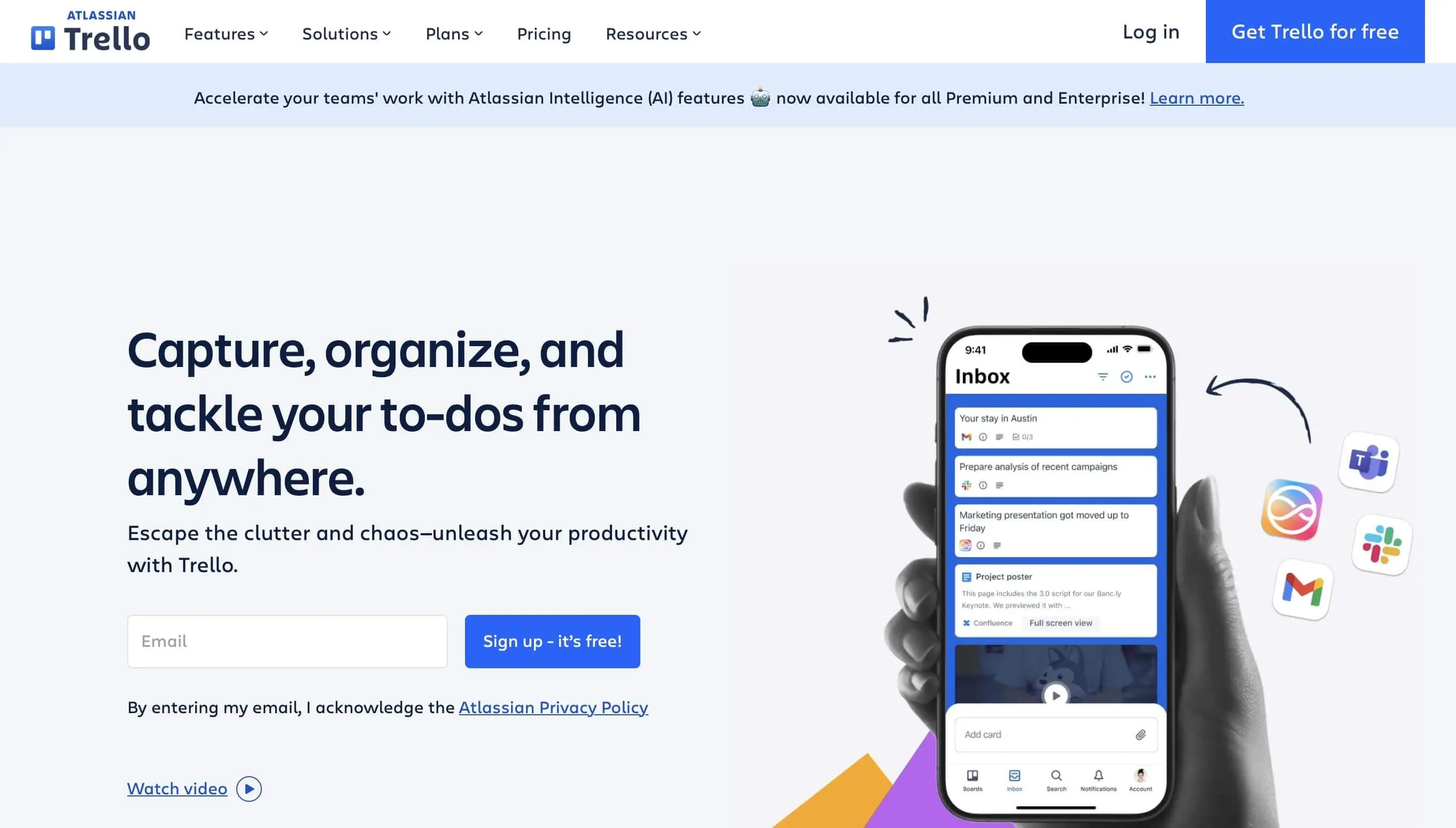
When you create a new board in Trello, you have three sharing options: In private mode, only manually added users can view and make changes to the board. Team boards, on the other hand, are automatically visible to all members of the project team. If you choose public sharing, anyone with the corresponding link can view the board online. Editing, however, is only possible in both cases if you have been added by the project manager. Task distribution works via so-called cards, which can be sorted into different lists to indicate the processing status. For designing individual tasks (cards), the following options are available:
- Assign members
- Add labels (color and optional pattern)
- Add checklists with unlimited items
- Comment
- Set due dates for tasks
- Attach links or files (PC, Trello, Google Drive, Dropbox, Box, OneDrive)
- View activity log
- Move to another list as status changes
By default, files from your computer can be up to 10 MB. Attachments up to 250 MB are available from the “Standard” plan onward. Paid plans also let you control who can create public or private boards and remove former members with one click. Premium support via email ensures a response within 24 hours for technical issues and questions.
| Advantages | Disadvantages |
|---|---|
| ✓ Beginner-friendly, intuitive interface | ✗ Card position and structure in boards cannot be changed |
| ✓ Mobile apps for iOS and Android | ✗ Unorganized archive |
| ✓ Various options for task design and categorization | ✗ Data stored on U.S. servers, possibly less secure |
Slack
Since 2014, the collaboration tool Slack has simplified communication in companies and agencies. The software also ensures that users always have access to all applications, services, and resources they need for their daily work. Slack is already used by over 40 million active users from more than 150 countries and over 750,000 companies every day. The web-based application, also available as an app for iOS, Android, Windows, macOS, and Linux, can be used free of charge or with a monthly fee (“Pro,” “Business+,” and “Enterprise+”), with paid plans offering more features.
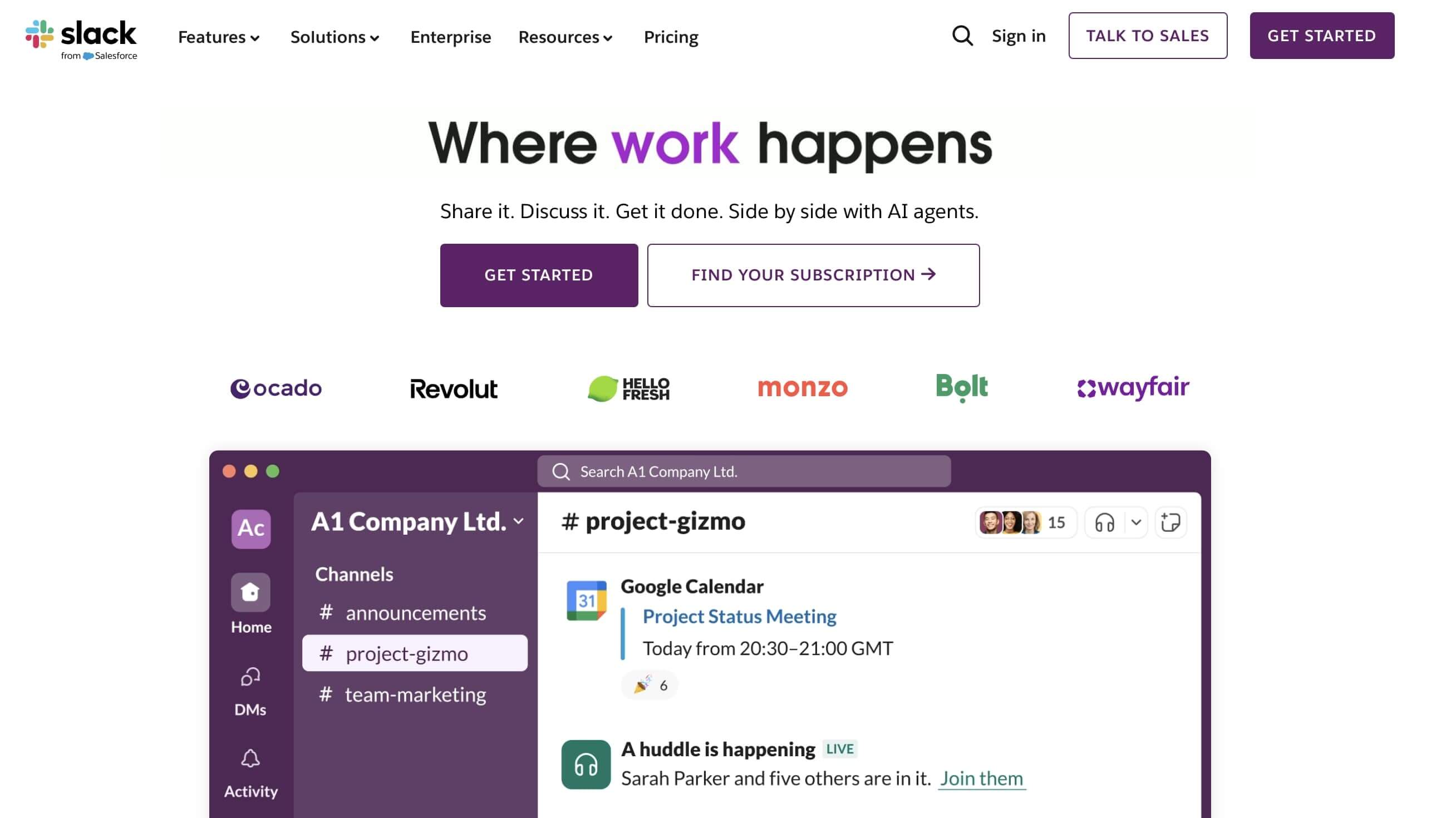
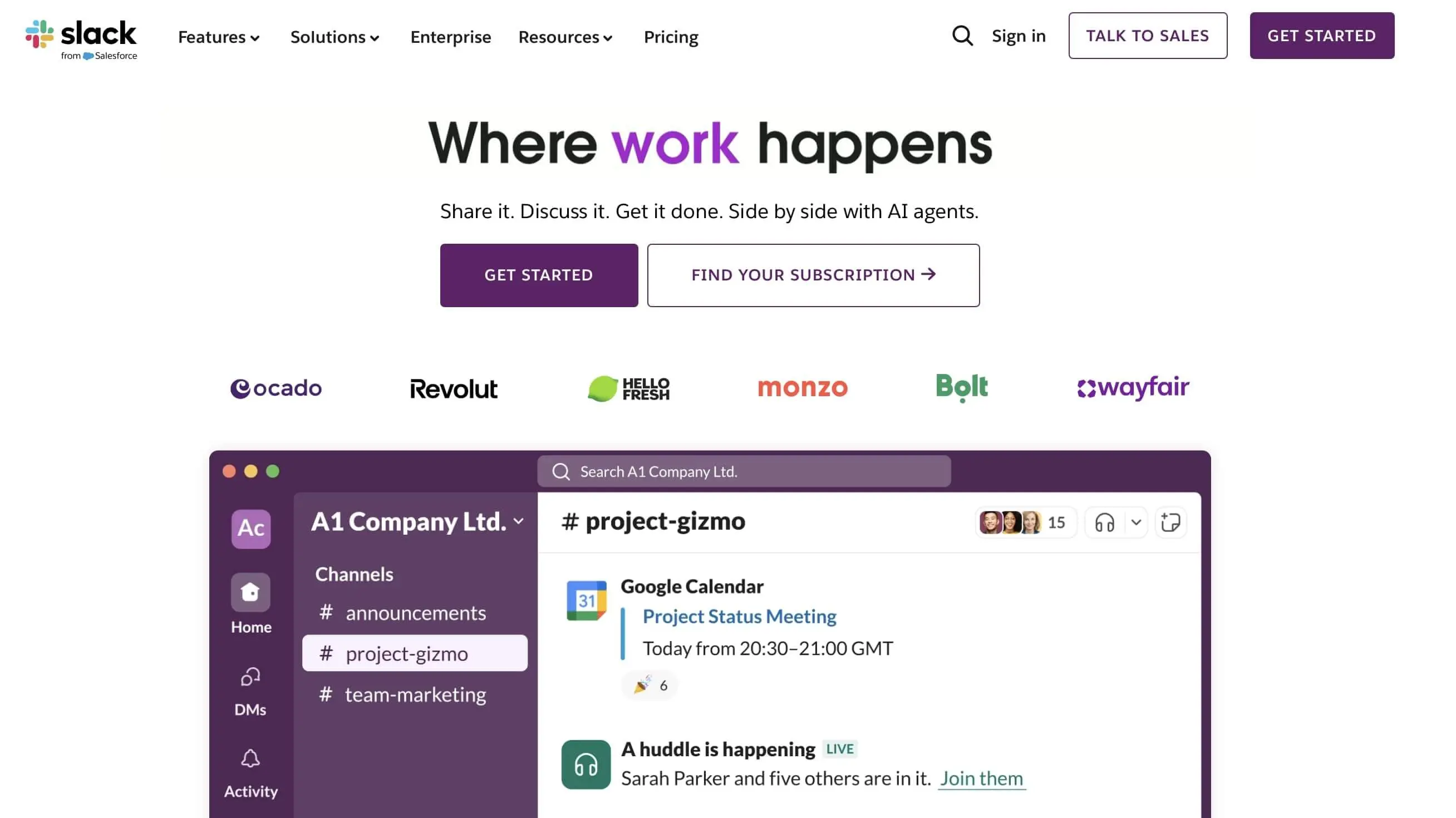
The main focus of Slack is to provide users with the best possible communication platform. To this end, you can create unlimited channels, which essentially function like chat rooms. When setting up such a channel, you can choose to either make it accessible to all invited employees or manually control who can join (Private Channel). Additionally, all members registered in the collaboration tool can communicate via direct messages with one another. It’s not only possible to send regular text messages, but also to share files (PC, Google Drive), share documents (Google Docs), or present code snippets (HTML, CSS, C++, PHP, and more).
The second core feature of Slack is the integration of third-party applications. Interfaces already exist for the following web services, among others:
- File management: Google Drive, Dropbox, Microsoft OneDrive, Box
- Communication: Google Hangouts, RSS, MailChimp
- Development: GitHub, IFTTT, Zapier, Jira Cloud, Nagios
- Marketing: Statsbot, GrowthBot, Drift, Mention, Reveal
- Productivity: Trello, Google Calendar, Asana, Simple Poll
- Social & Fun: GIPHY, Twitter, Bitmoji, Meme Bot
- Design: InVision App, Zeplin, Lucidchart, RealtimeBoard
The more channels you create for project management, the harder it becomes to maintain an overview – but Slack’s high-quality search feature makes it easy to find conversations and files anytime. The free version only accesses the last 90 days of messages, and third-party integrations are limited to ten. These restrictions are removed in the “Pro plan”, which also allows guest access and OAuth (Open Authentication) features. The “Business+” version promises 24/7 support with a maximum response time of four hours. The Enterprise version offers even more features; prices are available upon request.
Slack is also increasingly relying on AI-powered, automated workflows that summarize messages, detect sentiments, and display contextually relevant content from other apps.
| Advantages | Disadvantages |
|---|---|
| ✓ Easy sharing of documents, code snippets, and other files | ✗ No option to create separate teams |
| ✓ Apps for iOS, Android, Windows, macOS, and Linux | ✗ Data stored on U.S. servers |
| ✓ Various third-party integrations |
Basecamp
In 2004, the Chicago-based company 37signals (now Basecamp) released its collaboration software Basecamp, which has since been sold over three million times. The tool organizes both internal company communication and project work as well as collaboration with business partners, bringing together all your teams, projects, and workgroups on a single platform. Access to Basecamp is available either through common web browsers such as Google Chrome, Safari, Microsoft Edge, or Mozilla Firefox, or via the desktop application for Windows and macOS. Thanks to apps for iOS and Android, mobile users can also take advantage of Basecamp’s advanced collaboration features.
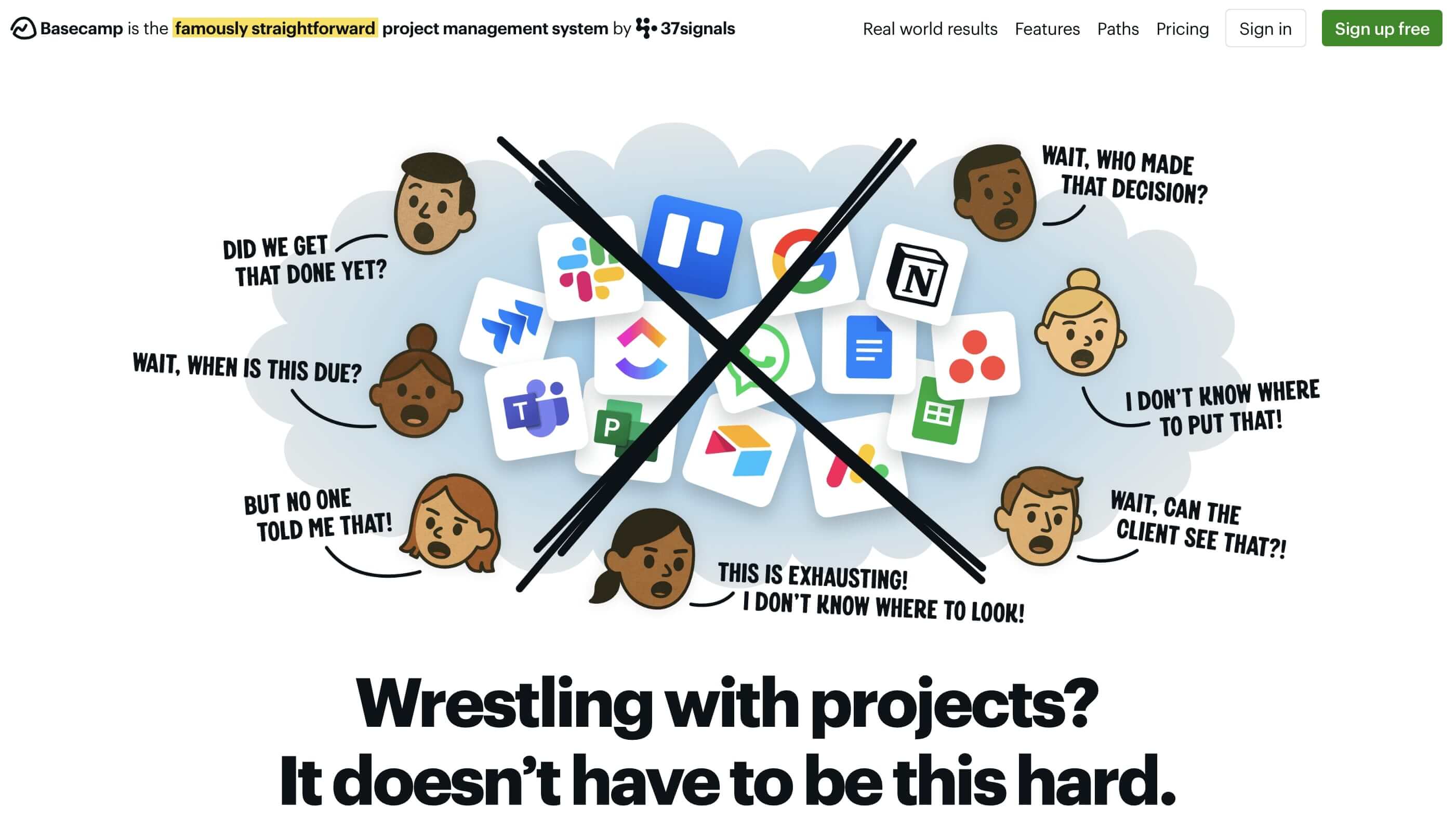
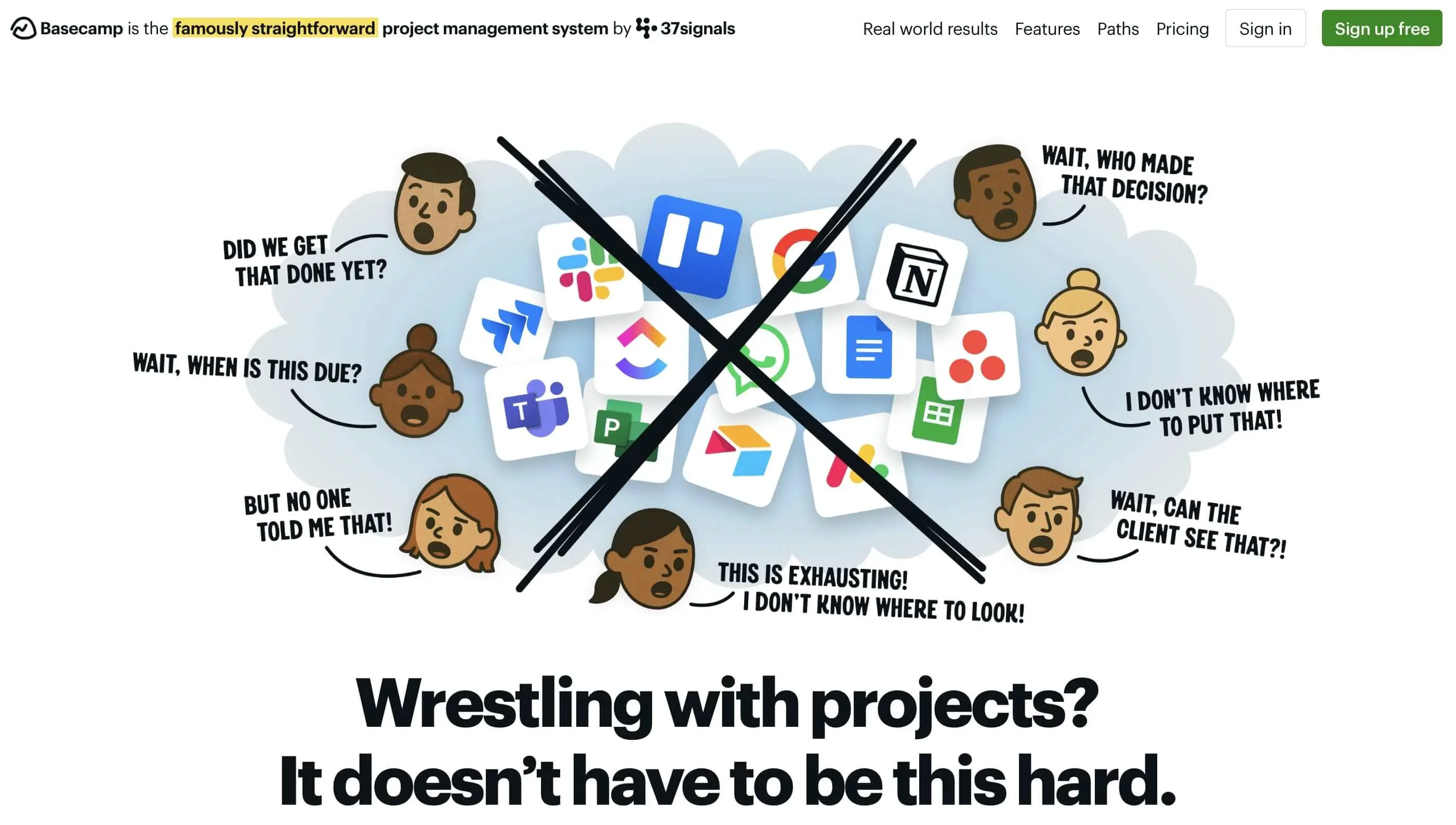
The Basecamp interface, which may seem overwhelming at first, is divided into three main areas: The “Headquarters” (HQ) section is for company-wide announcements, general information, and files available to everyone – intended for company leadership. Under “Teams,” you can create department-specific platforms for communication and planning. The “Projects” section displays the channels for individual work projects and their participants. Regardless of the section, six core features are always available:
- Chatroom: Individual chat room for each group (formerly called “Campfire”)
- Message board: For announcements and status updates
- To-dos: To-do lists with deadlines for key tasks
- Schedule: Calendar integration with Google Cal, iCal, or Outlook
- Automatic check-ins: Automated status questions (daily, weekly, or monthly)
- Docs & files: Central file storage for documents and links to Google Docs, organized via folders
Basecamp is free for a single project. To manage multiple projects, you need to upgrade to the paid “Basecamp Plus” or “Basecamp Pro Unlimited” plans. Both offer additional features like increased storage or better support. A unique aspect is that pricing for the Pro Unlimited plan is independent of the number of users.
| Advantages | Disadvantages |
|---|---|
| ✓ Excellent document collaboration and management features | ✗ Steeper learning curve |
| ✓ Automated status check-ins available | ✗ Data stored on U.S. servers |
| ✓ Flat-rate pricing in the Pro Unlimited plan |
Wrike
The collaboration tool Wrike is the core product of the company of the same name, founded in California in 2006 and multiple award winner in project management, work management, and business growth. Since March 2021, Wrike has been part of the U.S. software company Citrix.
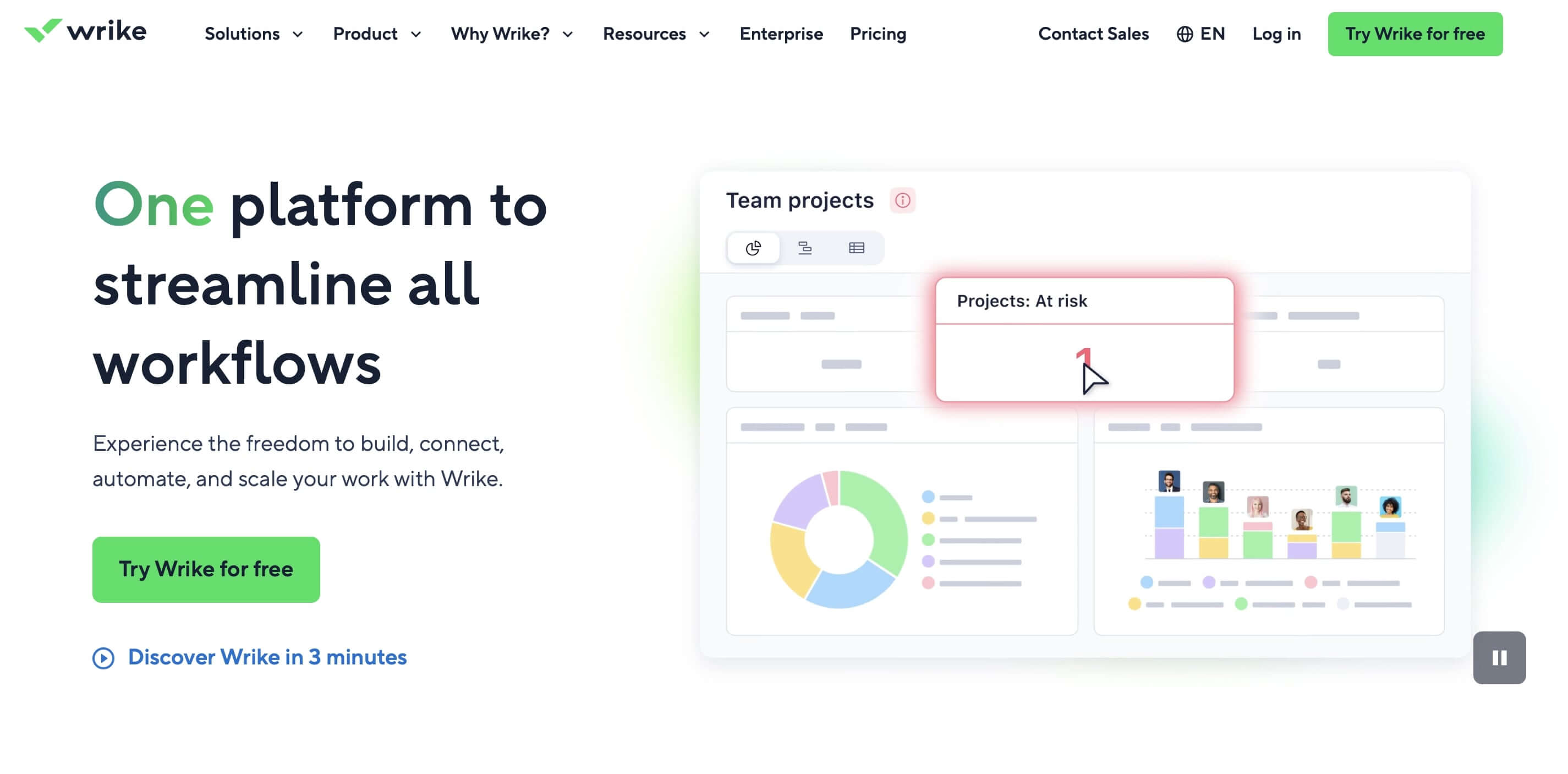
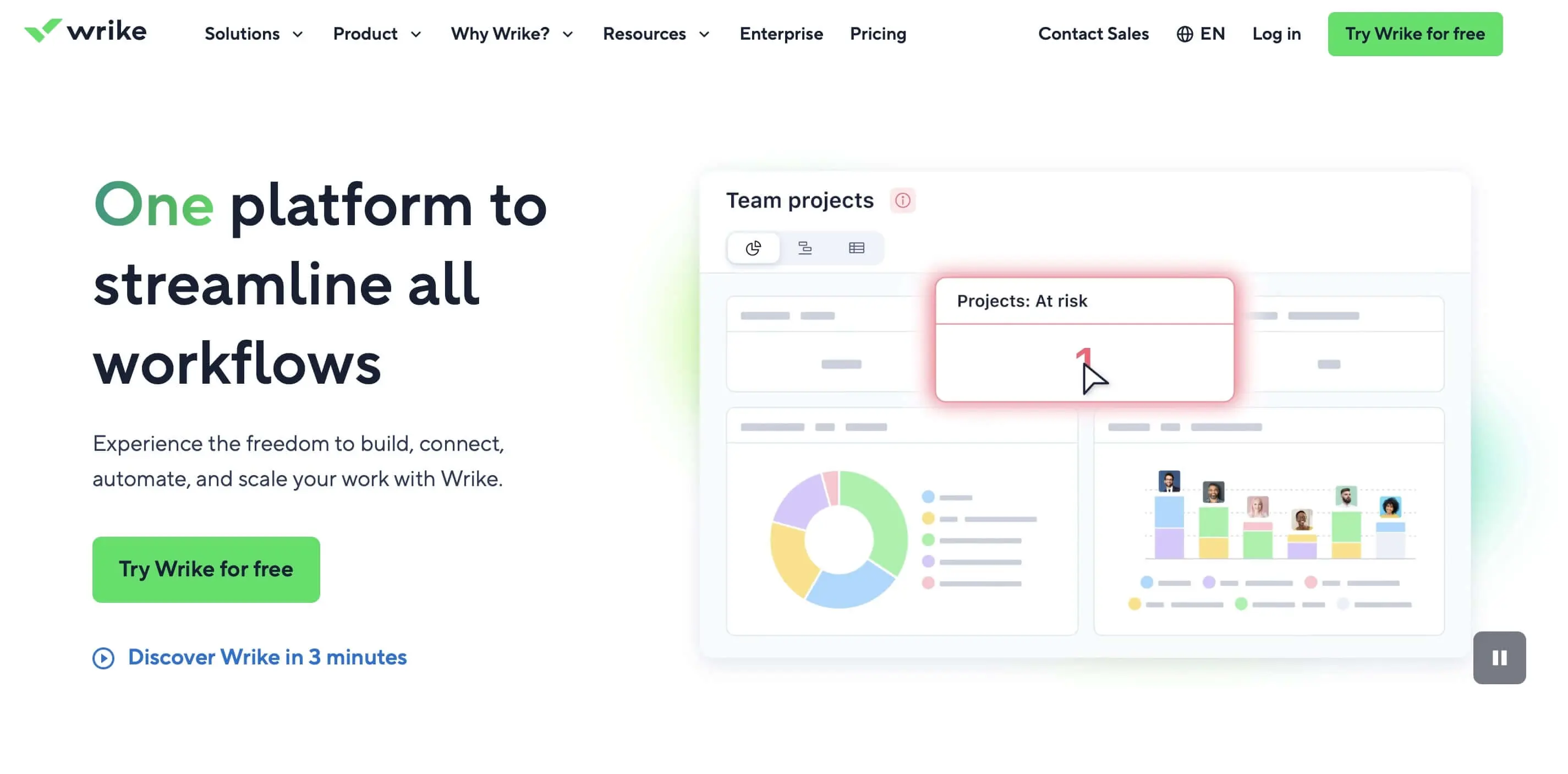
With features that regulate communication, transparency, and accountability in projects, the software is aimed at marketing, creative, project management, and product development teams, among others. In addition to a free edition with limited features, Wrike offers various tailored solutions like “Team” or “Business” with different focuses. The application can be accessed via the web or desktop apps (Windows, macOS) and mobile apps (iOS, Android).
Every project you manage with Wrike can be divided into any number of sub-tasks. Individual tasks can be organized using folders and schedules, which can be viewed and adjusted in the timeline view. This way, you can stay informed about the progress and contributions of all team members at any time. The live activity stream, version control, and the shared file storage (starting at 2 gigabytes), where relevant documents can be stored and linked, also help with this. To avoid having to create every task from scratch, the collaboration tool offers a practical copy function that lets you easily duplicate recurring tasks or even entire projects. Like some other solutions, the Wrike board can also be expanded through integrations such as the following:
- File sharing: Google Drive, Box, Dropbox, Microsoft OneDrive
- Development: Jira, GitHub
- Analytics: Tableau
- Chat/Messaging: Slack, Microsoft Teams
- Single Sign-On: SAML integration, Okta, Microsoft integration
For those with higher demands on collaboration software, the “Team” version is the minimum recommended option. It includes 5 GB of storage, access to generative AI, shareable dashboards, and an unlimited number of free viewers. Starting with the “Business” plan, you get 15 GB of storage per user, plus additional features like resource management, user groups and permissions, report templates, and the ability to customize your workspace. If you choose to test Wrike, you can freely choose from the available plans and confirm your choice after the trial period or alternatively select a different subscription if you decide to make a purchase.
| Advantages | Disadvantages |
|---|---|
| ✓ Copy function for recurring tasks and projects | ✗ Relatively expensive |
| ✓ Apps for Windows, macOS, iOS, and Android | ✗ Data stored on U.S. servers, possibly less secure |
| ✓ Visual task timelines (from Team plan) | ✗ Complex interface |
Spike
Not a full collaboration tool, but a great complement for any team – whether in large corporations or small projects: Spike revolutionizes the way we handle email. Instead of dealing with long email threads, unnecessary subject lines, and irrelevant signatures, Spike presents emails as if they were chat messages. This AI-powered software displays messages in a clear dialog format, omitting everything unrelated to the actual message content. Upon request, even suggested replies are generated. Unlike traditional email communication, Spike works in real time.
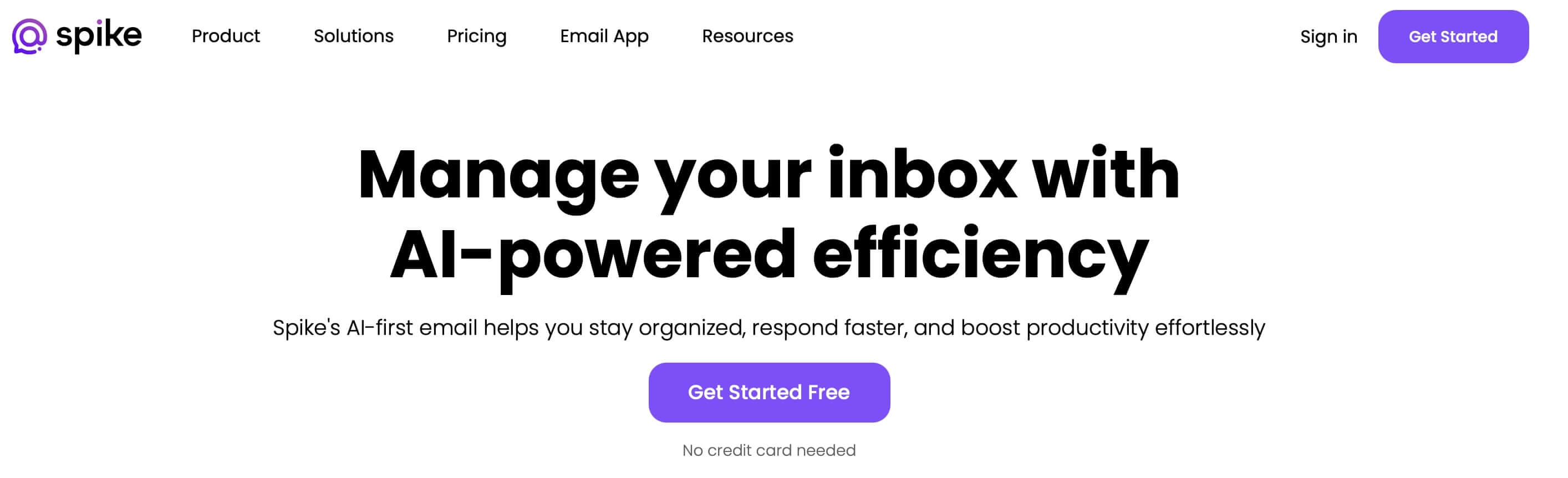
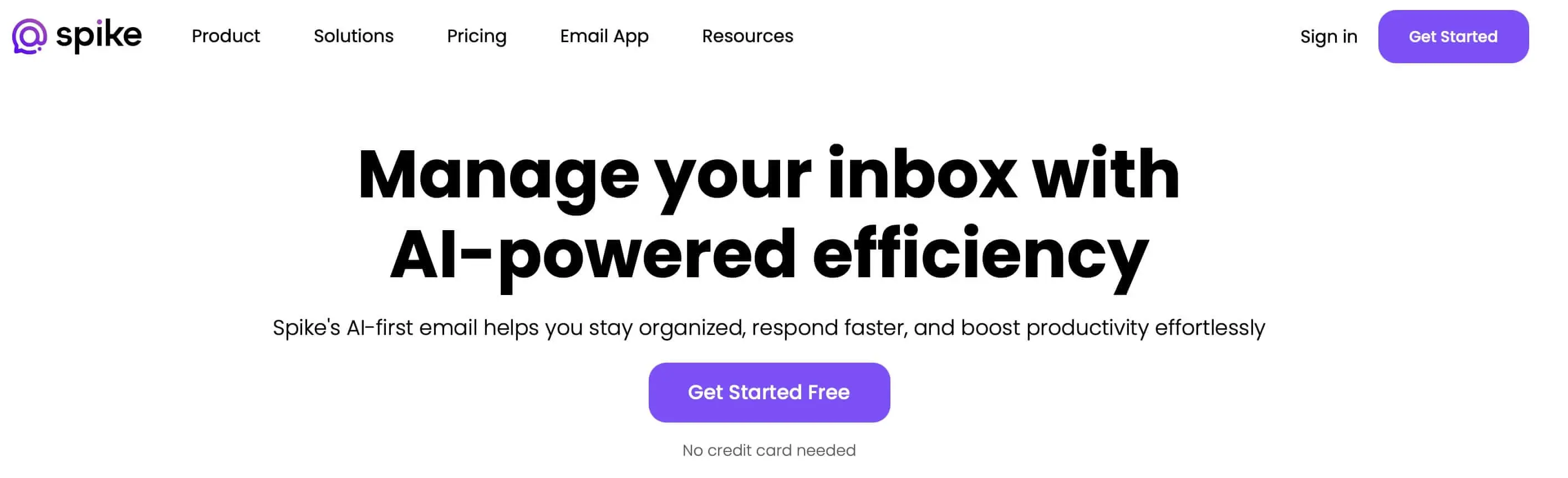
In addition to this innovative display format, Spike also impresses with other features: For example, it allows you to make VoIP or video calls directly within the application. Users can also manage a calendar with the software and easily share files with one another. Messages can be encrypted if desired.
These functions make Spike a great add-on to other collaboration software:
- Email communication in chat format
- Voice and video calls
- File sharing
- Calendar management
To use Spike, simply add your email account information. For personal users, the application is free up to a certain limit. A monthly subscription (free for students) includes extra storage (from 5 GB) and priority support. Professional teams pay a monthly fee. Spike is available for Android, iOS, macOS, Windows, and as a web app.
| Advantages | Disadvantages |
|---|---|
| ✓ Innovative email client | ✗ Not a full collaboration tool |
| ✓ Apps for all major platforms | |
| ✓ Web-based, platform-independent | |
| ✓ Voice and video calls |
Notion
Notion is not a classic collaboration tool either. Rather, it is internal communication software known for its modular structure and high flexibility. It combines functions for note-taking, task management, databases, calendars, and wikis into a single interface. Teams can use it to create central knowledge bases, organize project-related content, and manage tasks visually. Instead of relying on fixed templates, Notion allows users to design pages with customizable blocks such as text, tables, to-do lists, Kanban boards, calendars, or embedded media. It is especially popular for building and maintaining internal knowledge databases.
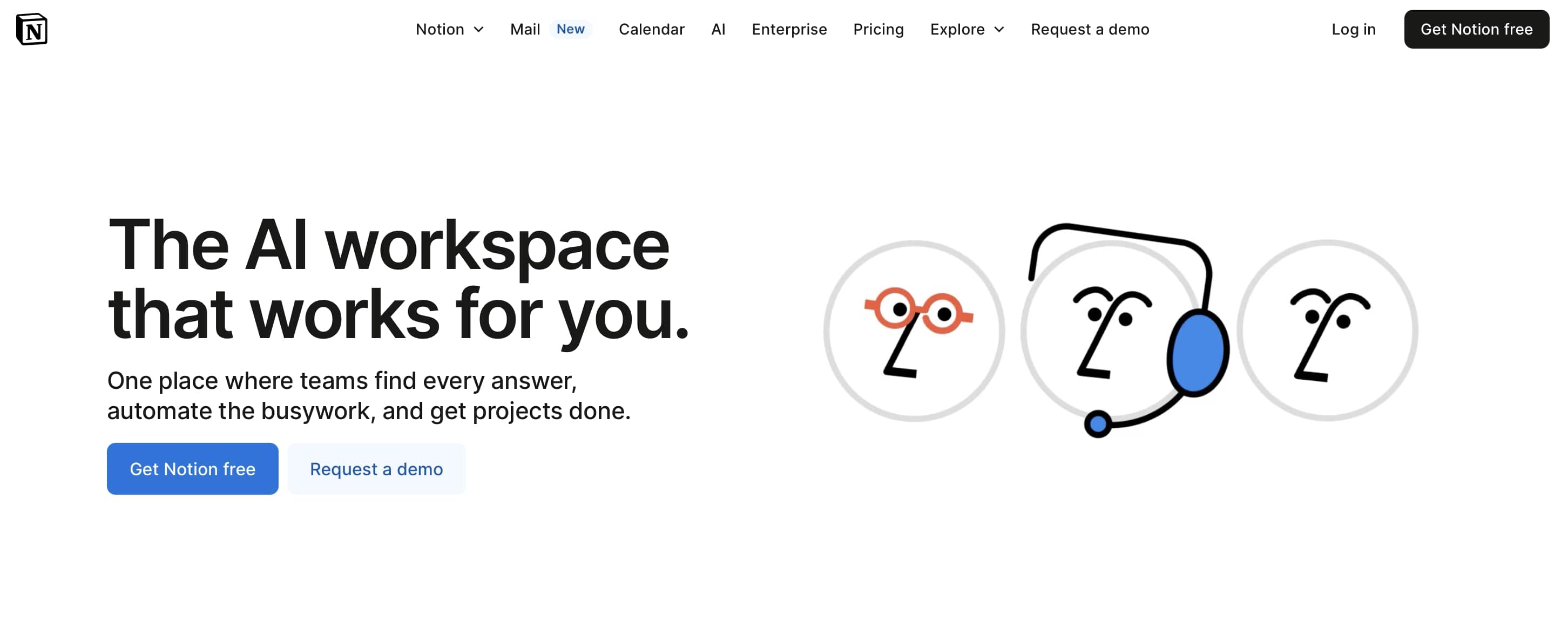
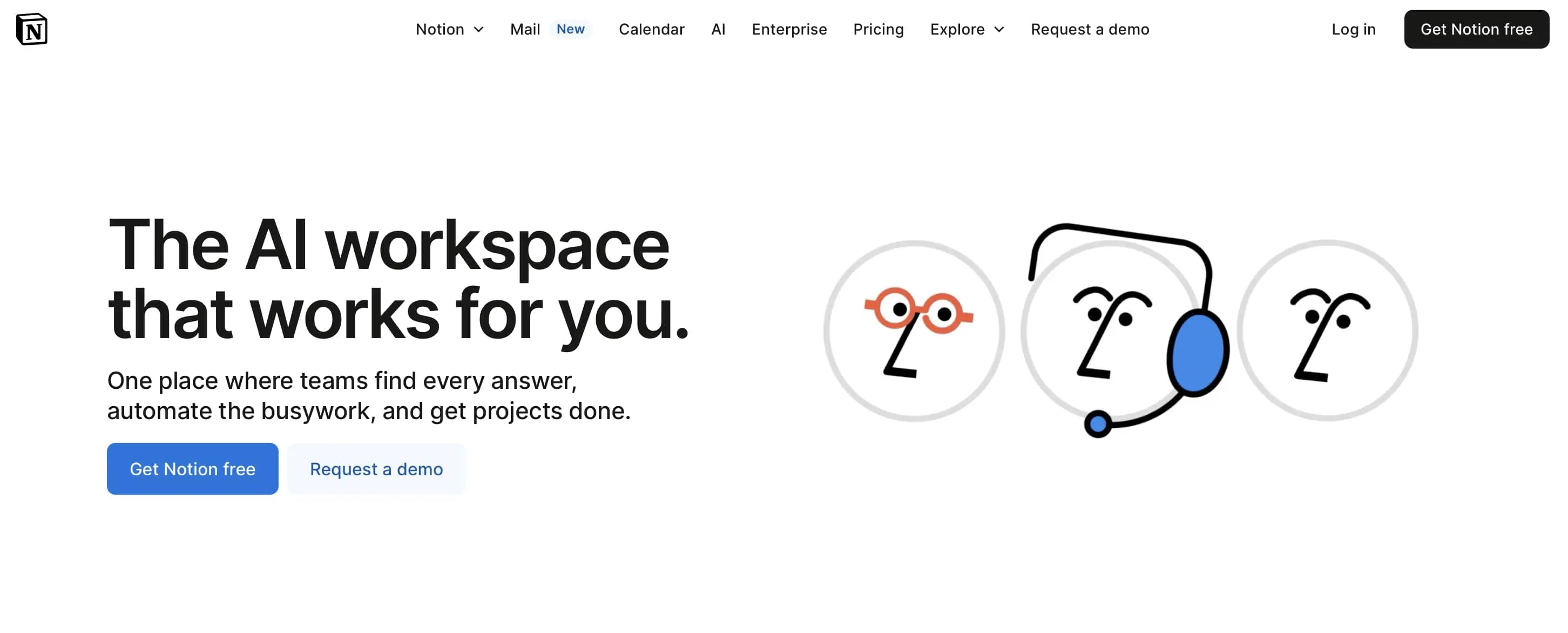
Collaboration in Notion happens in real time: Changes are instantly visible to everyone, and comments can be attached directly to content. A version history tracks all edits. The integrated Notion AI can summarize, rewrite, translate, or structure texts, extract tasks from meeting notes, or convert content into tables. With numerous templates and integrations (like Slack, Google Drive, or GitHub), onboarding is easy, and workflows connect seamlessly.
Notion is available via web browser, desktop, and mobile apps, supporting flexible work. A free plan is available for small teams or individuals, while the “Plus,” “Business,” and “Enterprise” plans offer advanced rights, analytics, and better support. The interface is minimalist yet powerful, and despite its many features, it remains intuitive. Data is stored on U.S. servers.
| Advantages | Disadvantages |
|---|---|
| ✓ Easy, intuitive interface | ✗ Not a comprehensive collaboration tool |
| ✓ Versatile use cases | |
| ✓ Available for all major platforms | |
| ✓ Numerous integrations |